Our Location
304 North Cardinal St.
Dorchester Center, MA 02124

304 North Cardinal St.
Dorchester Center, MA 02124

Our Setup Node.js App feature allows for the choosing a specific version of Node.js in order to run the apps using Node.js 6.x, 8.x, 9.x, 10.x, 11.x, 12.x, 14.x, 16.x, 18.x, 19.x, 20.x and 22.x versions. The currently available Node.js version pool on our Shared servers is available at this page.
This function provides ultimate flexibility and features a user-friendly interface that helps you get faster acquainted with the new functionality it offers.
Interface
In order to access the application, open cPanel >> Setup Node.js App.

The following interface will be displayed there:

Please note there are several columns in the list:
There is also an option to create a new application.
Create application
If you wish to create a new application, go to the cPanel >> Setup Node.js App >> Create application.
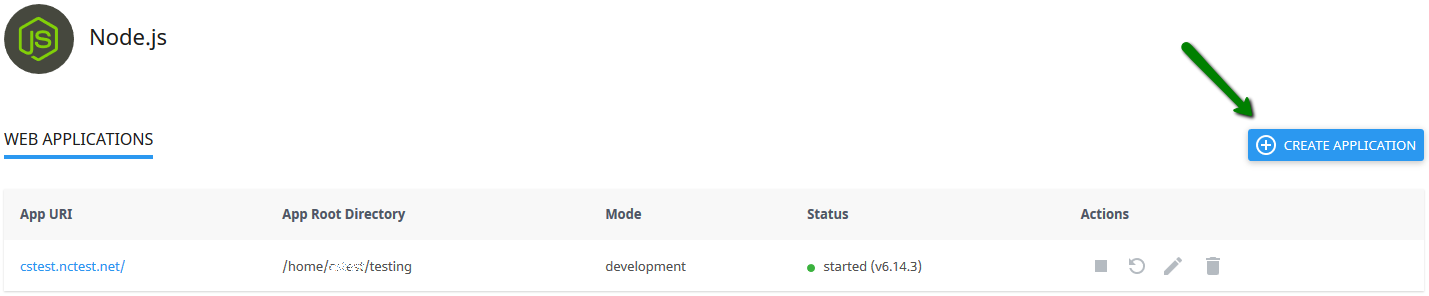
On the next page you will see the following fields:
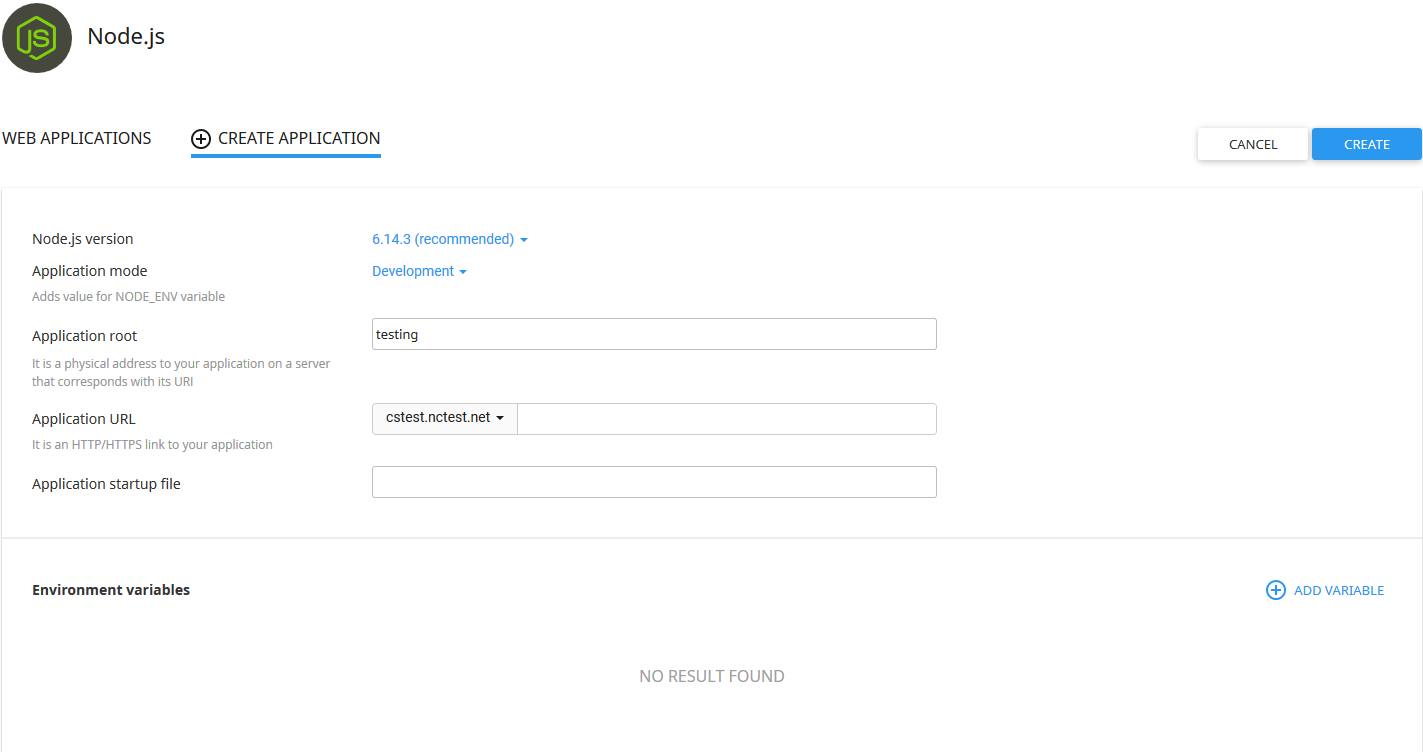
It is possible to choose the following parameters:
If you wish to add environment variables, click Add Variable to specify a name and a value.
After the application is created, you will be prompted to the application dashboard.
As soon as the environment is set, you can upload your application files to the application root directory.
In case you need to install some modules, it is possible to do this after entering the virtual environment of the application via SSH. The command for this is mentioned on the application page:

If there are any issues with installing a module, contact our Support team for help.
With the help of the Actions section, you can manage the application in the following way:
To start a stopped application, do the following:
1. Click the Start icon in the Actions column in the stopped application row.

2. Note that when an action is completed the Start icon changes to the Stop icon.

To stop a started application, do the following:
1. Click the Stop icon in the Actions column in the started application row.
2. Note that when an action is completed the Stop icon changes to the Start icon.
To restart a started application, click the Restart icon in the Actions column in the started application row.

PLEASE NOTE: During the restart, it won’t be possible to perform any actions with the app.
To edit the application, open cPanel >> Setup Node.js App and click the Pencil icon in the Actions column in the respective application row.

The editing menu looks like the following:

To enter the virtual environment via SSH, run the highlighted command mentioned on the top of the page.
Using this menu, you can manage the created application in the following ways:
In order to use Angular, it is needed to create a Node.js application in cPanel first. Then you will be able to enter the virtual environment and using the NPM install command run your Angular project.
To remove a started application, click the Bin icon in the Actions column in the respective application row.

PLEASE NOTE: When this action is completed, the application will be removed from the Web Applicationstable and you should see a confirmation pop-up displayed on your screen.