
You can install different software on your site in several clicks using the Softaculous auto-installer in the following way:
1. Log into your cPanel.
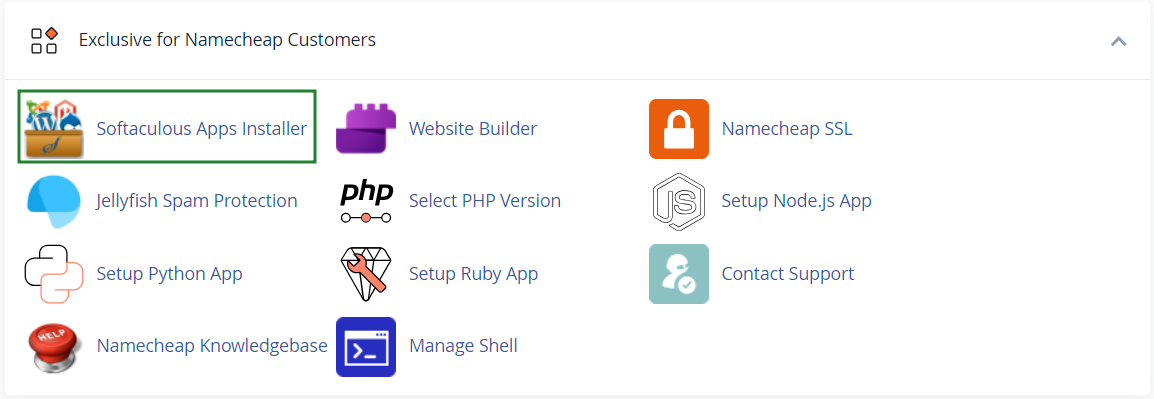
2. Navigate to Exclusive for Namecheap customers section > Softaculous Apps Installer menu:
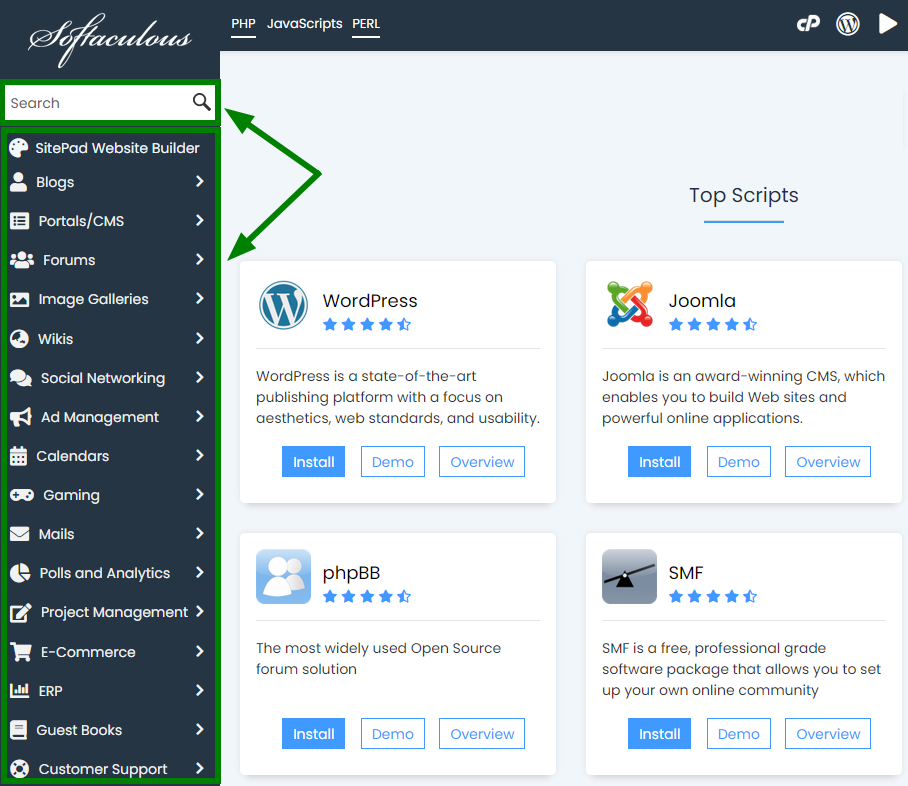
3. In the left-hand sidebar, you will see the software list split into categories like Blogs, Social Networking, etc. Here, you will be able to search for the CMS depending on your needs and requirements, either manually or using the built-in Search bar:
4. Once chosen, click on the software icon to start the installation. You will be redirected to the script overview page (as shown below for the WordPress installation). Feel free to check here the software description of the software, general features included, reviews, ratings and the CMS demo:
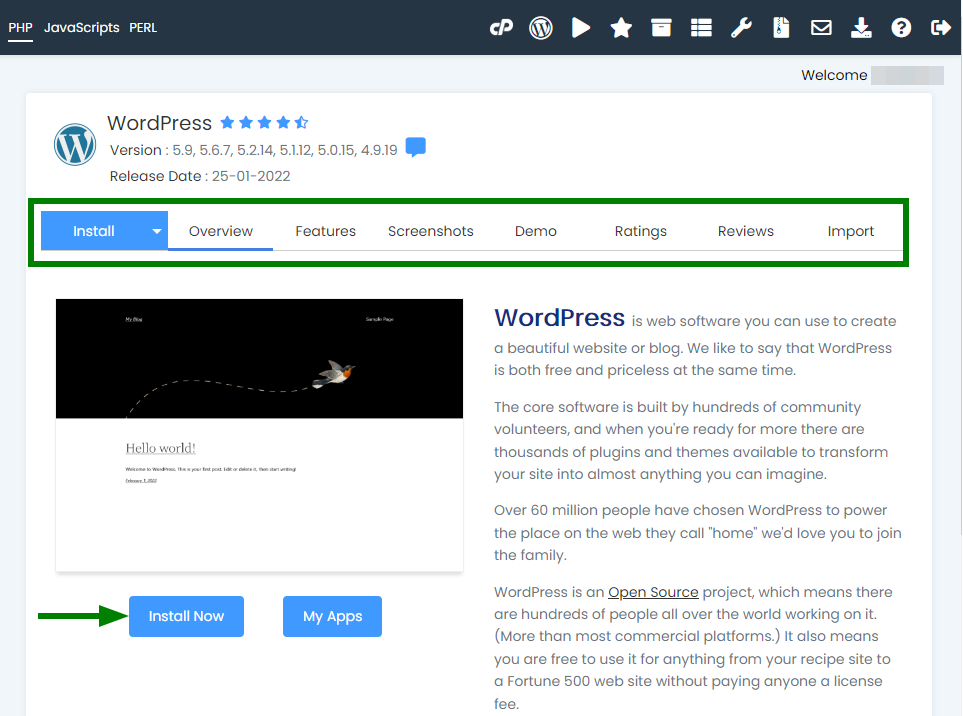
5. Click on the Install button to proceed.
The installation process of different scripts is pretty much intuitive and simple. However, should you require any assistance, do not hesitate to get in touch with our support team and we will be happy to help.
Below you can find a few detailed installation guidelines:
