
You can easily import/export your database using phpMyAdmin menu in cPanel. To do so, follow the instructions here. It allows processing only the databases that do not exceed 1 GB. If your database is bigger, you will need to use SSH commands.
Shell access is disabled on Shared servers by default, so if shell access was not enabled for your account previously, first of all, enable it with the help of this article.
The next step is to log into your account via SSH. This tutorial will guide you through this process.
Note that before performing an export or import, you will need to assign a database to a user. You can do it in cPanel > MySQL Databases menu > Add a User to a Database option: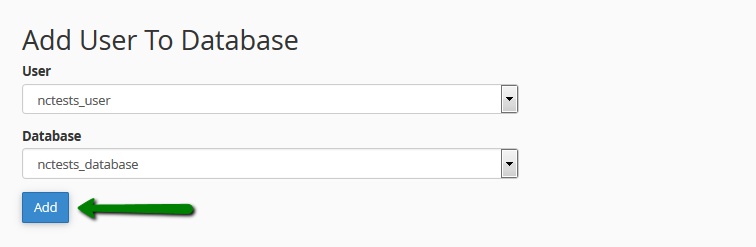
Make sure that you enable All Privileges option: 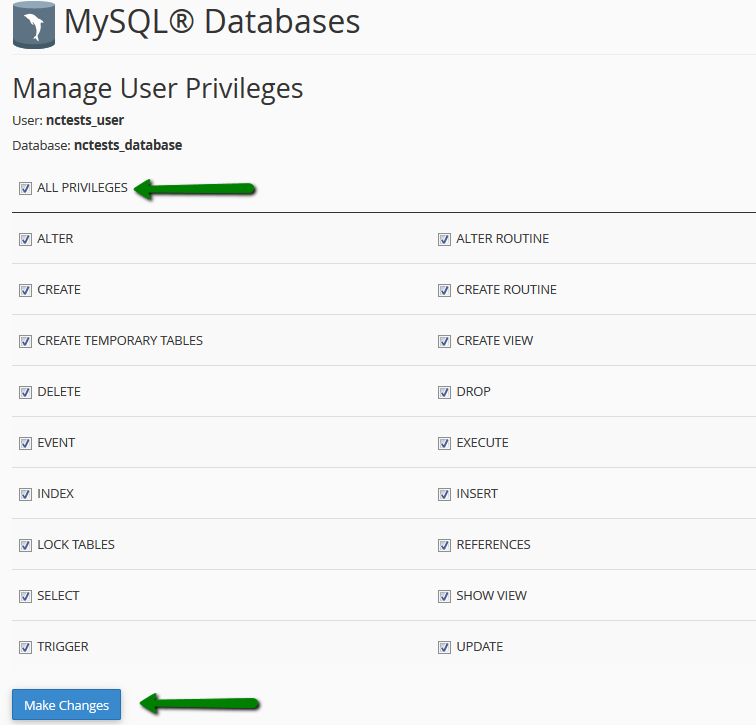
You can find more instructions on database creation and assigning it to a user here.
In order to import a database, use the following command:
mysql -u dbusername -pdbpassword dbname < /path/to/file/file.sql
You can also use:
mysql -u dbusername -p’dbpassword’ dbname < /path/to/file/file.sql
or
mysql -u dbusername -p dbname < /path/to/file/file.sql
In order to export, use this one:
mysqldump -u dbusername -pdbpassword dbname > /path/to/file/file.sql
The variable in italics are the following:
- dbusername: the name of a database user assigned to this database (it should be in the format of CPANELUSERNAME_DATABASEUSER), or your cPanel username
- dbpassword: the database user password (if you use a database user as a username) or your cPanel password (if you use your cPanel username as a username)
NOTE: No space between -p key and the password if you enter it in the command.
- dbname: the name of your database you are importing to or exporting from. It should be created in your cPanel. The format is the following: CPANELUSERNAME_DATABASENAME
- /path/to/file/file.sql: the path to the mysql dump that you are importing to (then a new file will be created) or exporting from your cPanel account. Here you can use both relative and absolute path formats. If you are in the folder with the file, you can just type the file name with the extension. With the absolute path, for example, it will be the following: /home/CPANEL_USERNAME/public_html/database.sql
If you do not receive any error or notification after pressing Enter, it means that the command was performed successfully.
Let us provide with an example.
We will use the following settings:
- dbusername: nctests_user (as a database user), nctests (as a cPanel username)
- dbpassword: 123qwe
- dbname: nctests_database
- path to the file: /home/nctests/public_html/databases/db_file.sql
After defining all the variables, the command will look the following way:
Database import
mysql -u nctests_user -p123qwe nctests_database < /home/nctests/public_html/databases/db_file.sql

NOTE: You can also use the following command:
mysql -u nctests_user -p nctests_database < /home/nctests/public_html/databases/db_file.sql
This way, you need to enter the password in the next line:

Database export
mysqldump -u nctests_user -p123qwe nctests_database > /home/nctests/public_html/databases/db_file.sql

NOTE: You can also use the following command:
mysqldump -u nctests_user -p nctests_database > /home/nctests/public_html/databases/db_file.sql
This way, you need to enter the password in the next line:

That’s it!
