
This guide describes how to edit the php.ini file on shared servers (Stellar, Stellar Plus, Stellar Business plans, as well as old Value, Professional, and Ultimate plans).
For a Business server (Stellar Business or old Business SSD plans), there is one more way to edit php.ini, you can check it in this guide.
With the help of PHP Selector implemented on our Shared Hosting servers, you can easily modify basic PHP settings via your cPanel >> the Exclusive for Namecheap Customers section >> Select PHP Version menu. You can find detailed guidelines here.
However, advanced PHP settings are missing from the Select PHP Version tool and must be manually configured in the php.ini file. You can either create the file or upload the existing one to your account.
How to upload and edit an existing php.ini file
How to create a php.ini file
https://www.youtube-nocookie.com/embed/jOuLD5Hdvds?feature=player_detailpage
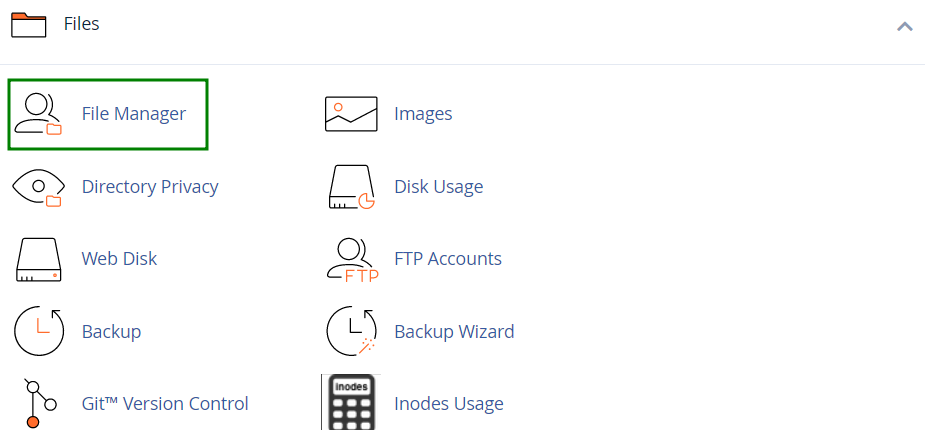
1. Log into your cPanel account, go to the Files section >> the File Manager menu.
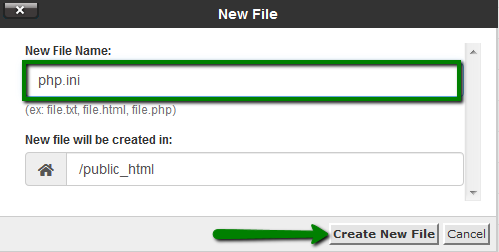
2. Navigate to the root directory of the domain, click on New File, and create a file named php.ini:
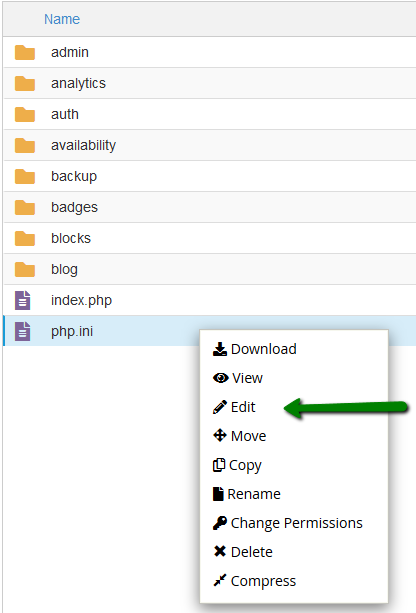
3. Find the newly created file in the list, right-click, and choose Edit:
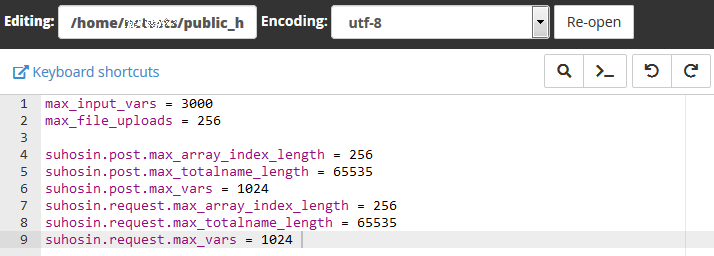
4. Add the required PHP settings and click on Save Changes in the top right corner:
To check the current PHP version and configuration, refer to this article.
How to upload and edit an existing php.ini file
1. Log into your cPanel account, go to the Files section >> the File Manager menu.
2. Navigate to the root directory of the domain name in question, upload the php.ini file. Feel free to download php.ini below in the Attachments section at the end of the guide.
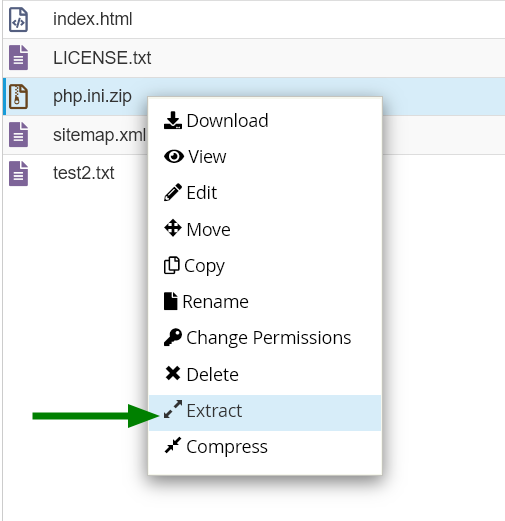
3. Once done, use the Extract option:
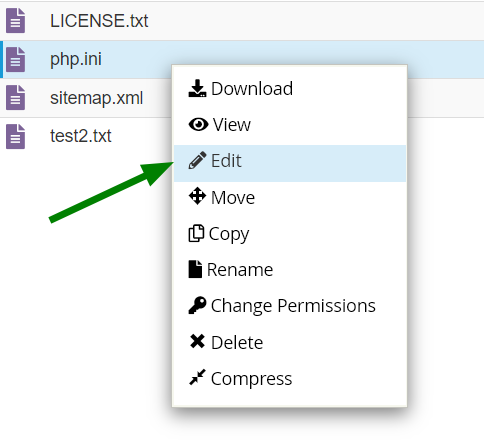
4. After that, right-click on php.ini to use the Edit option:
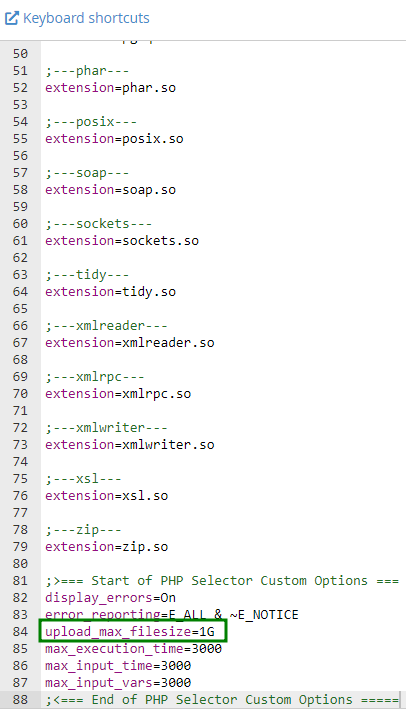
5. Here, you can use the search option and find the needed limit or value. In this example, it is upload_max_filesize.
6. Once all the required changes are made, click Save.
That’s it!
