
If you have a Stellar, Stellar Plus or Stellar Business plan (or old Value, Professional, Ultimate, Business plan) with us, you need to point your domains to dns1.namecheaphosting.com and dns2.namecheaphosting.com nameservers. If the domain is registered with Namecheap, you can change the nameservers by following the steps below.
PLEASE NOTE:
- Once the nameservers are changed, all the custom DNS records for your domain will be overwritten to our hosting ones. You will be able to re-create them in your cPanel Zone Editor and Email Routingmenu where you can manage domain’s email settings.
- If you have PremiumDNS, you need to follow the steps described in this article to use the PremiumDNS and Hosting services simultaneously.
1. Sign into your Namecheap account and go to Domain List.
2. Click on Manage next to the domain in question.
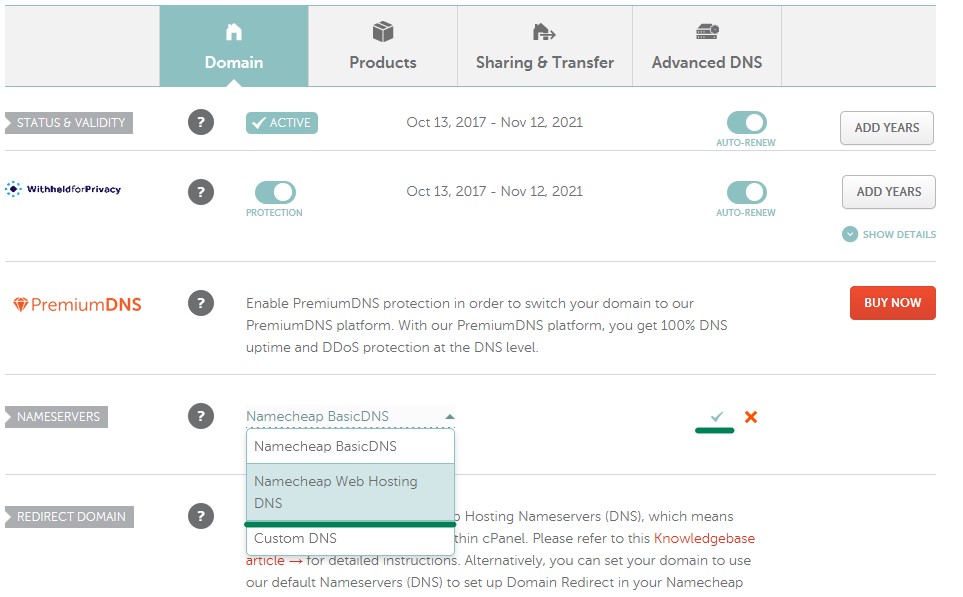
3. Select Namecheap Web HostingDNS next to Nameservers and save changes by clicking on the checkmark icon:
If you have a Reseller plan, you can use either shared reseller nameservers or your personal nameservers. You can look up shared reseller nameservers in your Hosting Welcome Email. Personal nameservers need to be registered and set up first.
If your domain is registered with another registrar, you will need to obtain the correct nameservers from us and then configure the DNS on their side.
If your domain is registered with GoDaddy, follow the steps here.
Once the nameservers are changed, your website most likely will not be available. In most cases, the propagation period can take up to 24 hours (in rare cases more, since the caching time varies between ISPs). Unfortunately, this process cannot be influenced or sped up because of its automatic nature. During DNS propagation you can use online proxies to check your website. These proxies are designed to bring up the websites through different ISPs so you can see your website real time bypassing all kinds of caches. Examples of such online resources:
NOTE: When switching between Namecheap BasicDNS/PremiumDNS/Web Hosting DNS nameservers, the DNS changes come into the effect within one hour (24+ hours in rare cases).
That’s it!
