
The white screen (blank page) is one of the most common errors that occur in WordPress. In this guide, we will cover possible causes and the ways to fix them.
NOTE: Before proceeding with any changes, make sure that you’ve generated a full backup of your website. If you’ve created your site using the Softaculous script installer, please refer to this guide.
Clear cache
If you have a blank page, you should first try flushing WordPress caching plugins. If you do not have access to the WordPress dashboard, clear your browser cache.
Check the error_log
Since PHP errors are most often the cause, you can check the error_log file in the root folder of your website (or the folder the error was triggered in) to locate the issue.
Enable WP_DEBUG mode
You can also use the WordPress debug function to see what type of errors are being outputted. Locate the wp-config.php file in the root folder of your website and make sure the WP_DEBUG mode is enabled:
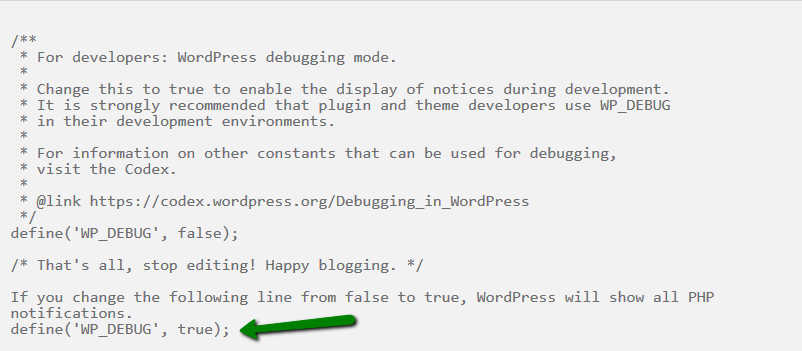
The instructions on how to enable the WordPress debugging mode can be found here.
Increase PHP and WordPress memory limits
Since WordPress memory limit is one of the most common causes for blank pages, we recommend increasing your limit. Indications of this error could be a white screen or an error message like this one:
Fatal error: Allowed memory size of 33554432 bytes exhausted (tried to allocate 2348617 bytes) in /home/username/public_html/site1/wp-includes/plugin.php on line xxx
You can find detailed guidelines on how to increase WordPress memory limit here.
Also, you may increase the PHP memory limit following one of these articles:
- How to change PHP version on Shared servers
- How to change PHP version on Business servers
- How to edit php.ini on Shared servers
Disable plugins
One of the most common causes of the blank page on WordPress is a plugin issue. Try disabling the plugins via your database as described here.
If you’re not sure which plugin caused the issue, try disabling them one by one until you are able to get to the bottom of the issue and fix it.
Change the website theme
If the plugin troubleshooting doesn’t fix the white screen on the website, then you should try changing the theme. You can find detailed instructions on how to switch the theme here.
NOTE: Make sure that the default theme is present in /wp-content/themes folder. If it’s not, you can download a default WordPress theme using this source.
Switch PHP versions
The blank page can also be caused by incorrect PHP version. You can try switching PHP versions to check it.
Refer to these articles for more details:
Replace all the default WordPress files
Missing or corrupt default WordPress files are most often the cause, you can check the error_log file in the root folder of your website (or the folder the error was triggered in) to locate and define the issue.
Try replacing all the default files using this guide.
If you experience the same issue after performing the aforementioned steps, feel free to contact our Support Team to receive further assistance.
Well done! You now know how to fix a white screen.
